
Do you need a PNG because the receiving application rejects your WebP, or because you expect PNG to restore detail that disappeared earlier? The first is a conversion task. The second requires an earlier source that still contains that detail.
A WebP to PNG converter can provide a usable destination file without recovering the image that existed before lossy compression. Its output also depends on any resizing, palette reduction, orientation or other processing applied along the way.
This guide compares six verified routes and an original local round-trip experiment. The selection concerns incoming WebP files and required PNG delivery, rather than choosing a compression winner for a website.
Check the converted PNG against the image the WebP currently decodes to. Check recovery claims against the earlier source separately.
Design task
Establish why PNG is required
A concrete destination makes the conversion easier to evaluate. A publishing system might accept PNG but reject WebP; a colleague might need a supported still image for a presentation. Confirm that requirement before introducing another derivative.
WebP itself supports lossy and lossless encoding, as Google’s format overview explains. Its extension alone does not identify which encoding history produced the supplied picture.
A useful conversion brief records:
- The received WebP and its identifiable source.
- The application or workflow requiring PNG.
- Whether the intended result is a still image or animation.
- The dimensions, transparency and colour requirements that matter.
- Any intentional transformation beyond changing the encoding.
- The original and converted files that must remain available.
Receiving a WebP does not automatically create a reason to replace every website asset. Conversion can be a narrow handoff requirement while the web-delivery decision remains separate.
Define what “preserved” means
Three checks answer different questions. A file can pass one while leaving the others unresolved.
| Check | Comparison | Question answered |
|---|---|---|
| Conversion integrity | Decoded WebP versus decoded PNG | Did the selected operation preserve the current raster? |
| Earlier-source fidelity | Pre-WebP source versus decoded result | Had information already changed before conversion? |
| Destination acceptance | Delivered PNG inside the receiving application | Does the required file actually work there? |
The original experiment later separates the first two using a known source. For an incoming image without that source, earlier fidelity may be unknown. A converter’s preview cannot supply the missing history.
If the task also requires layers, editable wording or separate artwork objects, consult the published graphic-design software guide. A PNG delivery image serves a different purpose from a maintained design project.
Resource collection
Compare the route and its controls
These six resources provide desktop, command-line and browser-accessible routes. They are not six independently benchmarked decoding engines. The public entries and documentation were reviewed on 4 November 2026; no provider received a file for conversion.
| Resource | Useful starting situation | Main condition to inspect |
|---|---|---|
| GIMP | A desktop image needs inspection before export | Input interpretation and chosen PNG pixel format |
| Adobe Express | A straightforward browser quick action | Exact conversion route and downloaded result |
| FreeConvert | Browser conversion with explicit processing options | Resizing, lossy processing, orientation and metadata settings |
| CloudConvert | An online format-specific conversion entry | Selected options, output and account conditions |
| ImageMagick | A maintained command-line process | Installed format delegates and explicit operations |
| Ezgif | A browser-accessible still or animation workflow | Local/server mode and PNG versus APNG output |
Use Resource Box to return to the official sources. Choose the operating route before comparing optional features; an unused API or unrelated editing tool need not become part of a simple conversion.
GIMP: inspect the image before choosing its PNG representation
GIMP provides a desktop route when an image needs inspection alongside conversion. Its versioned 2.10 release notes explicitly document WebP importing and exporting. That historical capability reference is not a claim that 2.10 is the latest release.
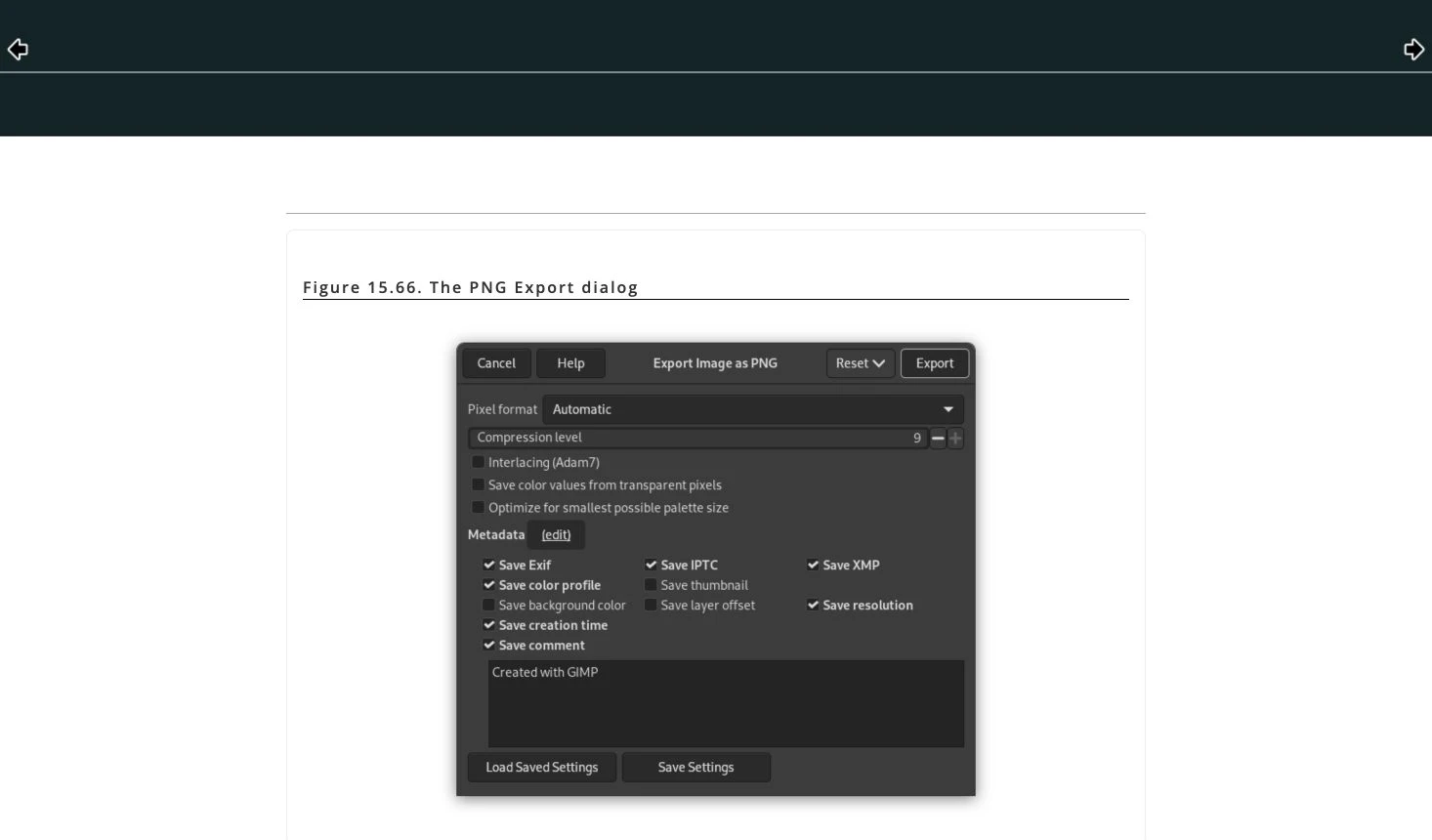
The 3.0 PNG export manual describes pixel-format choices, alpha, compression and metadata controls. This preview is documentation with a provider example, not a conversion performed inside an installed application.
For the team, the useful distinction is the image open in the editor versus the file eventually exported. A change to image mode or pixel representation belongs in the acceptance record even when the output extension remains PNG.
Keep the received WebP separate from the delivery file. Reopen the exported PNG and check the properties the recipient needs; the documentation does not certify a particular installed version, source file or export configuration.
Adobe Express: keep the quick action separate from a redesigned canvas
Adobe Express’s WebP to PNG page describes selecting a WebP, converting it and downloading PNG. Its dedicated entry makes the intended input and output clear without requiring the team to begin with a larger design composition.
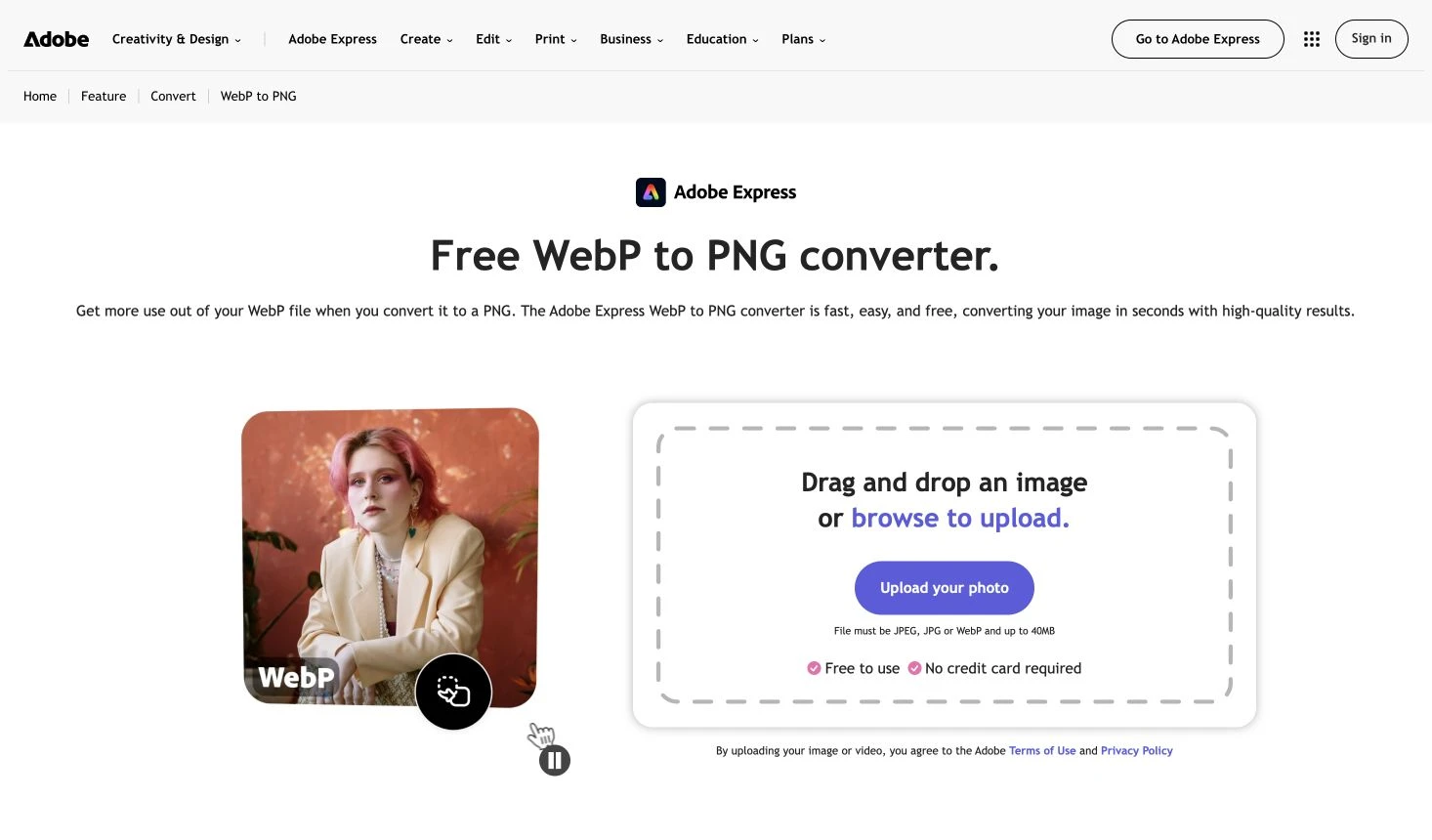
That route is worth investigating for a one-off handoff. The relevant proof is the downloaded file in the receiving application, rather than a promotional example or the availability of unrelated templates.
Continuing into an editor creates additional decisions. A changed canvas, crop or background may be intentional, but it should not be mistaken for an untouched encoding conversion.
No upload, account-level operation or download was tested for this review. The public quick-action description does not establish timing, exact pixel identity or every plan’s export entitlement.
FreeConvert: inspect processing before trusting the PNG label
FreeConvert’s specific WebP to PNG route exposes advanced settings alongside file selection. The inspected session showed Keep Original Size, a Lossy Compression option, Image Quality 100, and checked Auto Orient and Strip Metadata controls.
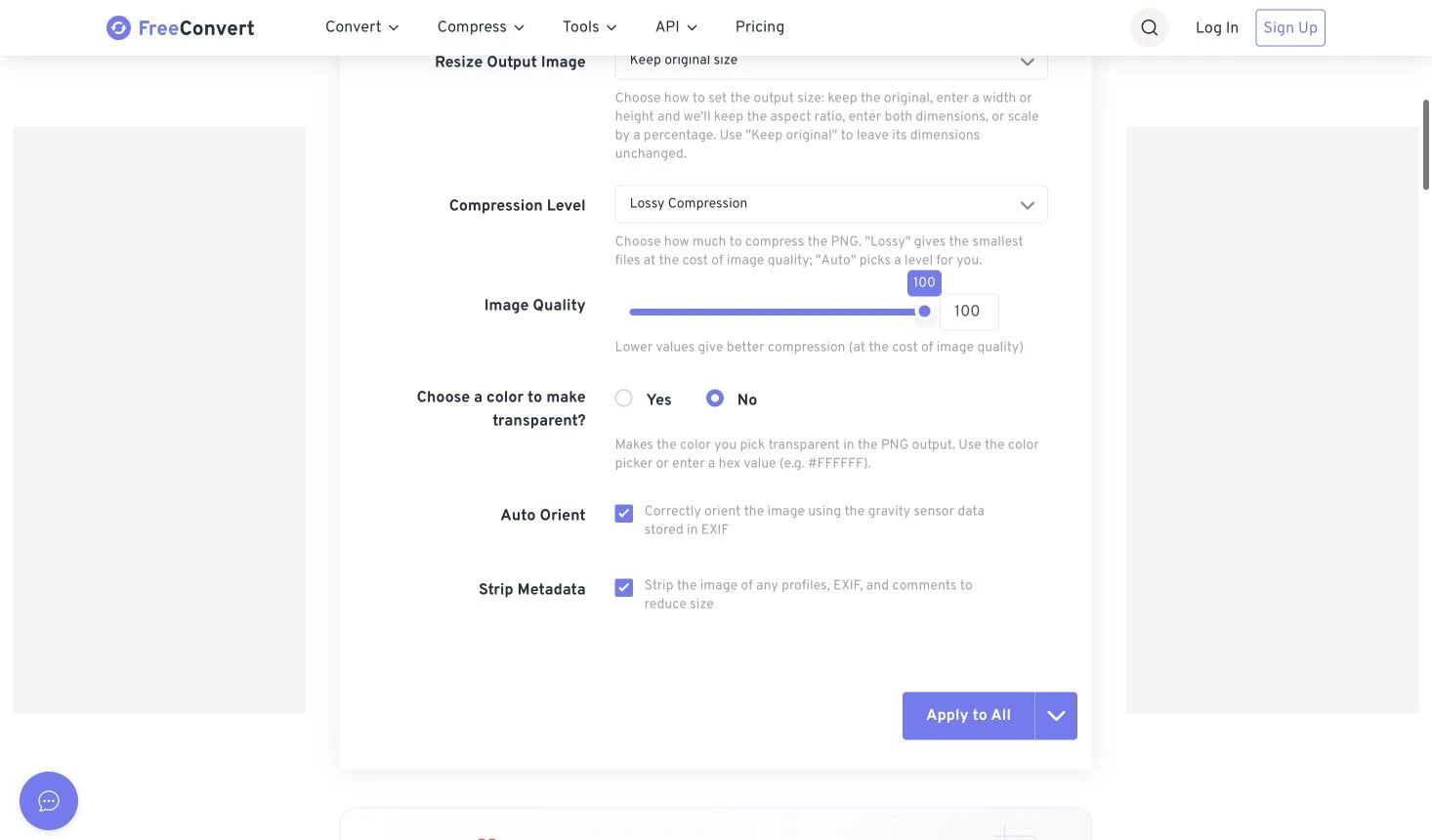
Those are observations of this public session, not proof of every account’s defaults or a processed output. No setting was used to convert a file during this review.
The lossy option is an important qualification. A service can alter image data before encoding a valid PNG; the lossless storage format does not make every preceding operation lossless. A quality value of 100 also needs the meaning assigned by that particular workflow.
For a preservation task, review the selected settings rather than leaving them implicit. Record intentional resizing, orientation changes or metadata removal separately from the encoding change, then inspect the resulting file.
CloudConvert: verify the options attached to the exact conversion
CloudConvert’s WebP to PNG page identifies the two formats and describes options affecting resolution, quality and file size. It provides an online file-selection entry for this particular conversion.
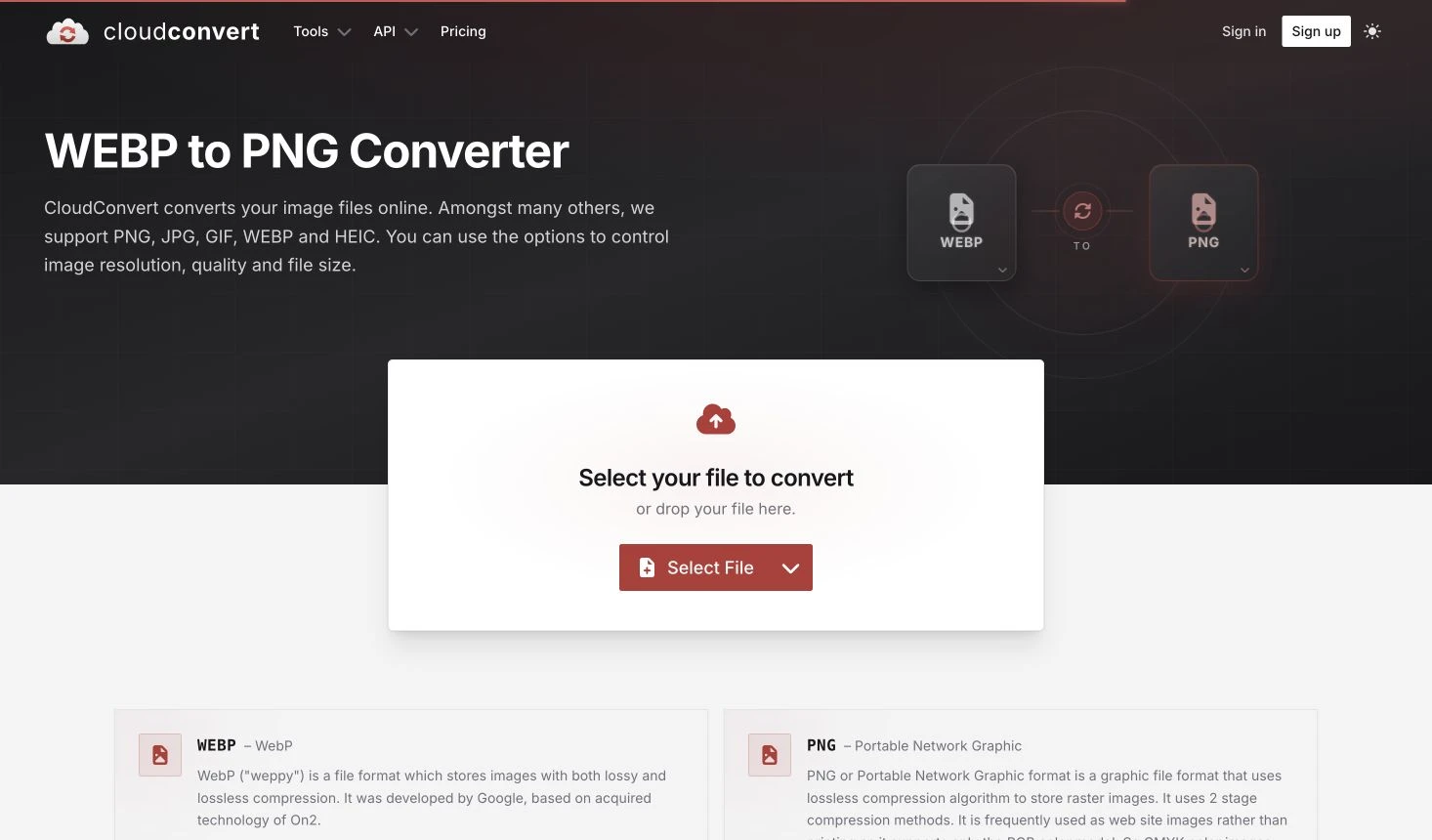
This can suit a team that already uses the service and has an appropriate upload route. Existing familiarity should still lead to a small, reviewable conversion rather than an assumption that every remembered setting remains suitable.
Keep account access, permitted upload handling and image acceptance separate. The availability of a browser page does not establish local processing, an unlimited allowance or successful output from a particular source.
No file, account or conversion job was tested here. For a recurring workflow, retain the options and actual result so the next editor can distinguish an intentional change from a different export configuration.
ImageMagick: verify the installed build as well as the command
ImageMagick’s official format table lists PNG and WebP read/write support. It also identifies required libraries: PNG depends on libpng, while WebP requires its WebP delegate. The documentation provides a way to list the formats supported by the actual installation.
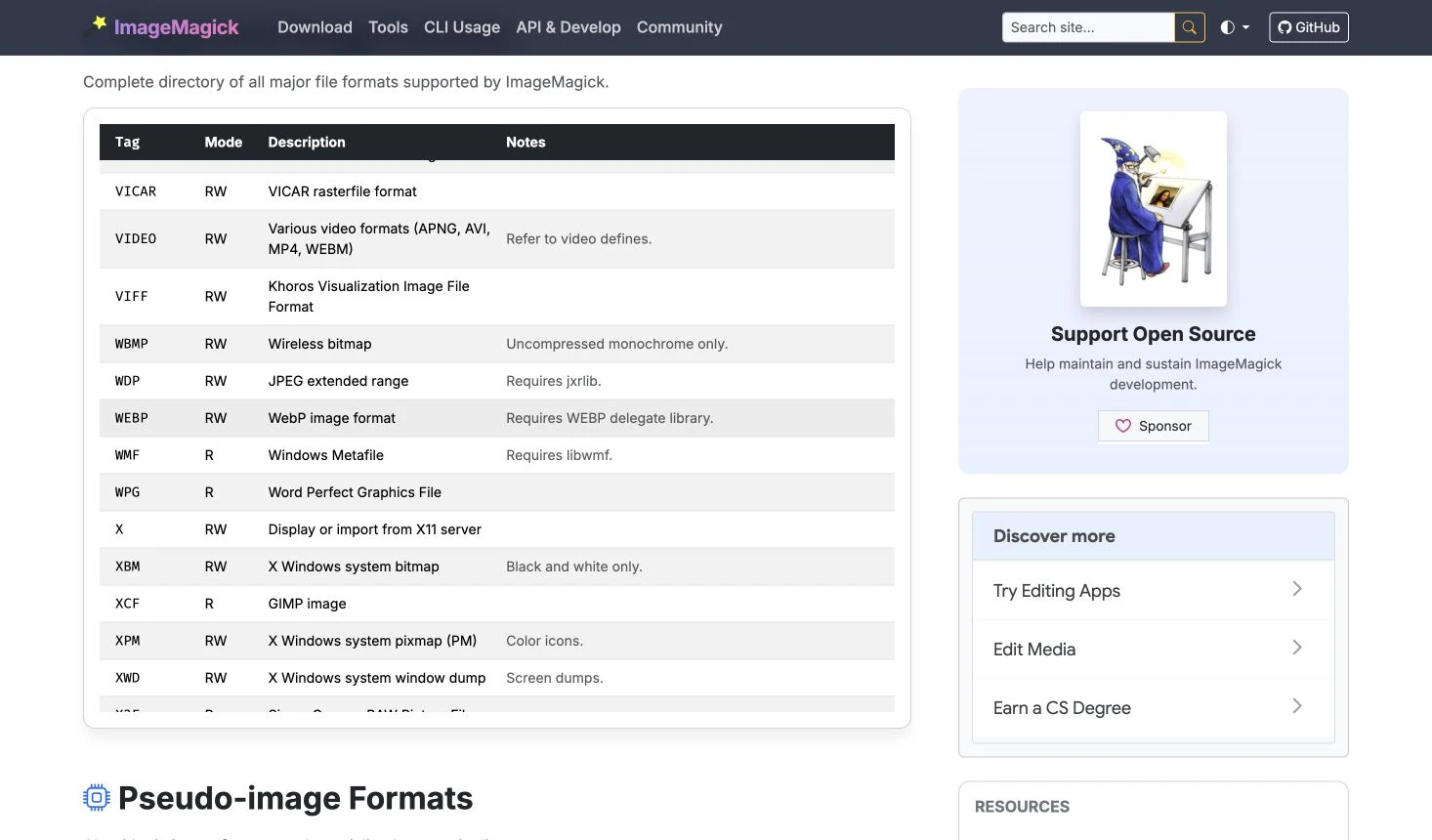
That distinction matters for a maintained command-line workflow. A recipe can be explicit while the receiving machine still lacks a required format capability. Record the installed environment alongside the intended input, output and operations.
For repeated work, write derivatives to a separate location and verify the files produced. Keep failed inputs identifiable rather than treating a command completing once as approval of an entire folder.
ImageMagick was not installed or operated for this guide. The original experiment uses sharp and libwebp; its results must not be attributed to ImageMagick or used to certify another build’s handling of colour, metadata or animation.
Ezgif: distinguish local processing, server processing and animation output
Ezgif’s WebP to PNG page presents local batch and single-file routes. The inspected single-file starting view also exposed a Local Processing checkbox. Its documentation distinguishes browser processing from server conversion.
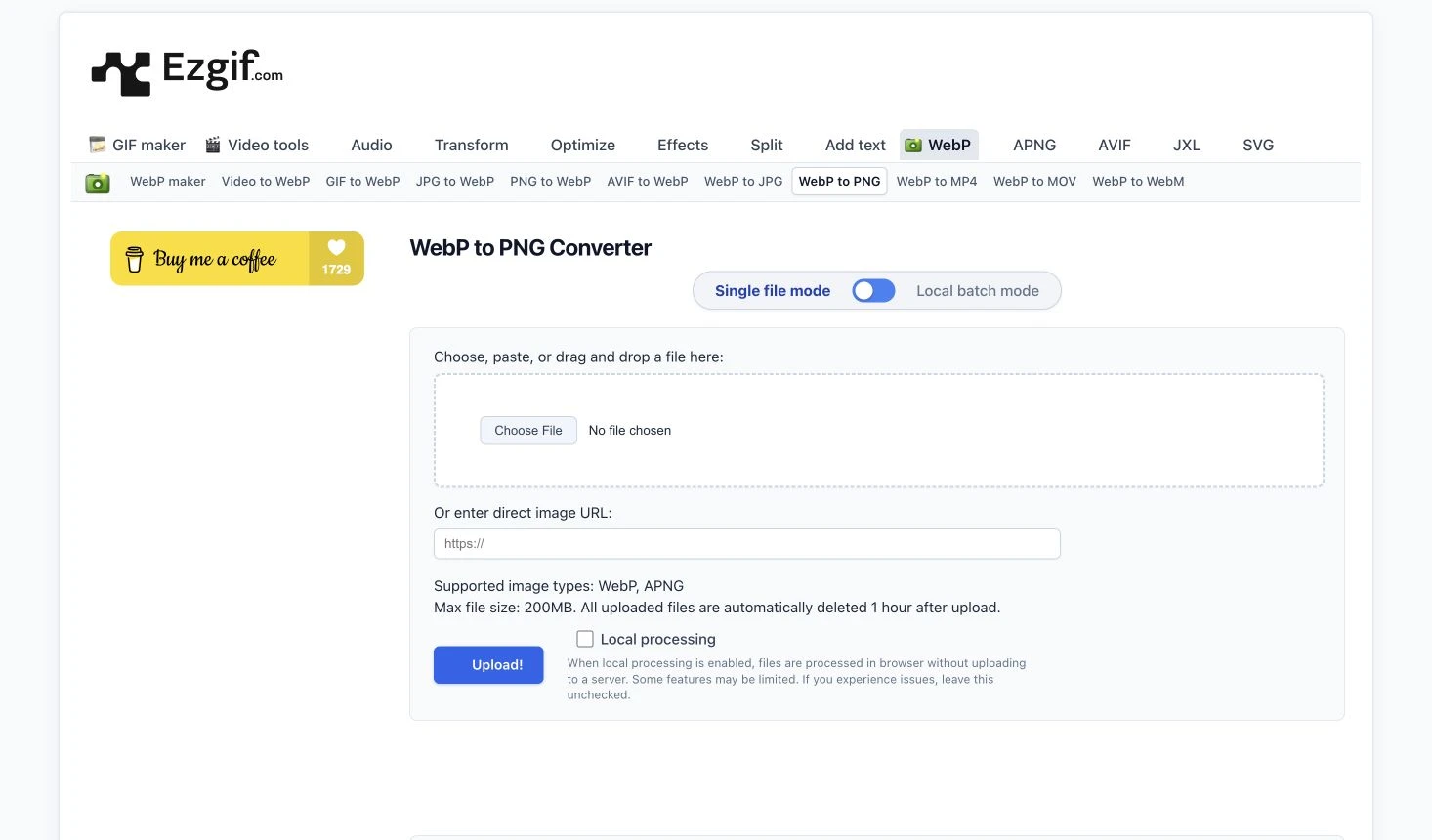
It therefore should not be labelled simply as a cloud-only converter. The selected mode matters, and a mode being available is different from verifying where a completed file was processed.
The page also describes animated WebP conversion to APNG. A PNG-named destination can therefore involve an animation-aware output rather than a single still frame; the recipient’s exact requirement remains important.
No mode, file conversion or animated result was tested here. Treat the public interface as a starting point, then check the actual output’s dimensions, frame behaviour and required transparency before delivery. Provider privacy statements are not an independent network audit.
Fit and limitations
Separate encoding from other image changes
The format names describe how an image can be stored. A selected route may also resize it, reduce colours, apply orientation information or choose an output pixel format.
Those changes can be useful. They need to be intentional when the brief asks for the same image in another supported container. The practical question is what the operation actually did, not whether the output carries a familiar extension.
PNG delivery also does not recreate the original illustrator’s shapes or the editor’s layers. The published editable-illustrations guide addresses that separate source-control question.
State what has not been tested
The six previews establish public source context. They are not six provider outputs, account tests or a comparison of conversion speed. The GIMP and ImageMagick captures specifically show documentation.
The original experiment below uses one opaque RGB construction. It provides no finding about alpha transparency, colour profiles, EXIF metadata, orientation, animation or a recipient’s application. Each relevant property needs its own check on the real input and selected route.
No prices, free allowances or paid entitlements are ranked here. A tool should be selected around an available operation and an acceptable result, with current account conditions checked when they matter.
How to choose
Separate two histories in one original round trip
The original source is a deliberately regular 64 × 64 RGB pattern with high-frequency colour changes. It is opaque, has no ICC profile and contains no animation. The local experiment used sharp 0.35.4 and libwebp 1.6.0.
Two WebP files were created from that same source. One used explicit lossless mode; the other used lossy mode with quality 50. Both used effort 6, and each was then converted to PNG. The sharp output documentation describes these format-specific controls.
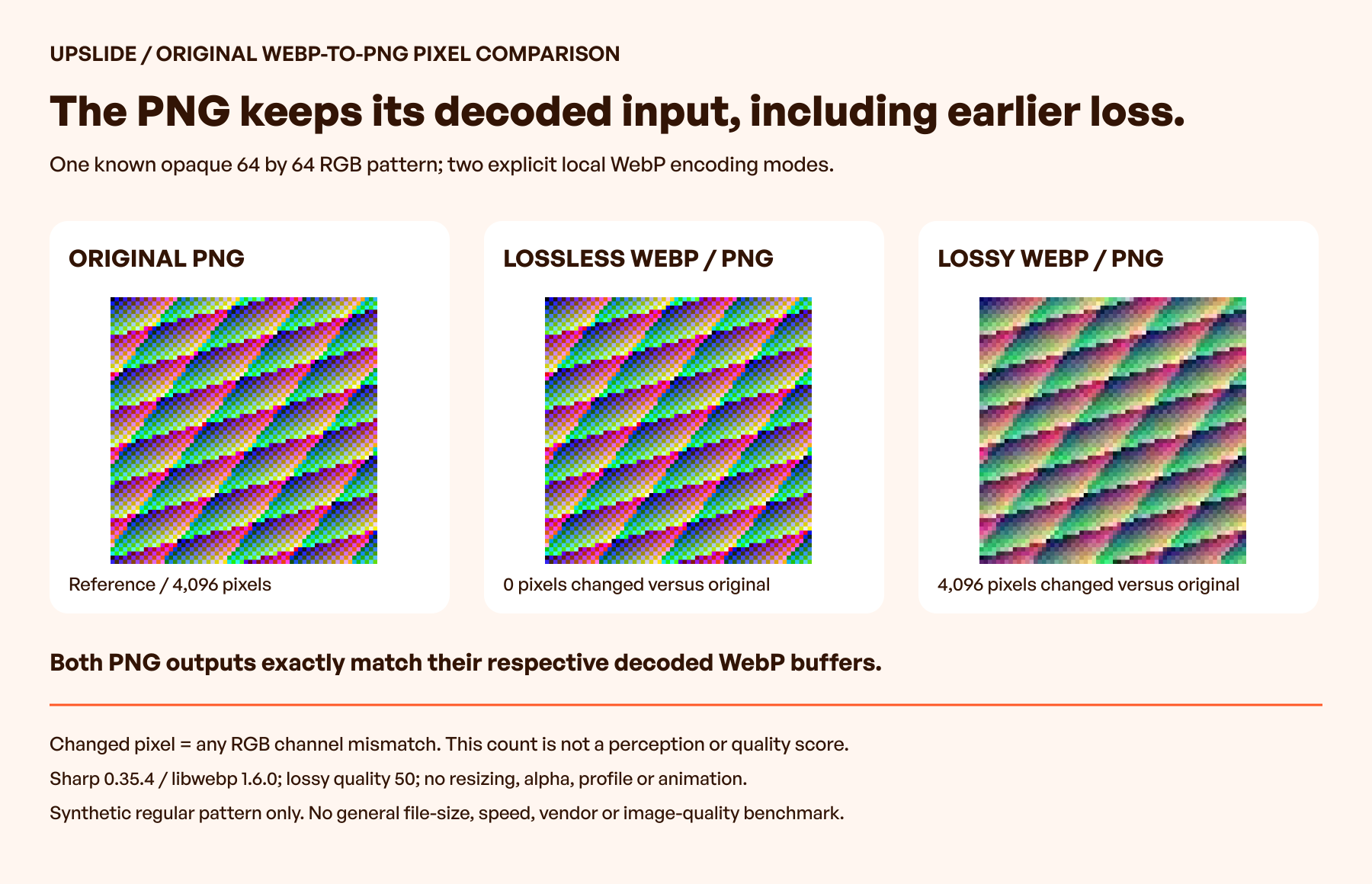
The program compared decoded RGB buffers, rather than comparing only filenames or encoded file hashes. It asked whether each PNG matched its immediate WebP input and, separately, whether it matched the known source before WebP encoding.
| Recorded route | WebP bytes | Converted PNG bytes | Pixels different from the earlier source |
|---|---|---|---|
| Explicit lossless WebP to PNG | 100 | 10,381 | 0 of 4,096 |
| Lossy WebP at quality 50 to PNG | 1,986 | 12,113 | 4,096 of 4,096 |
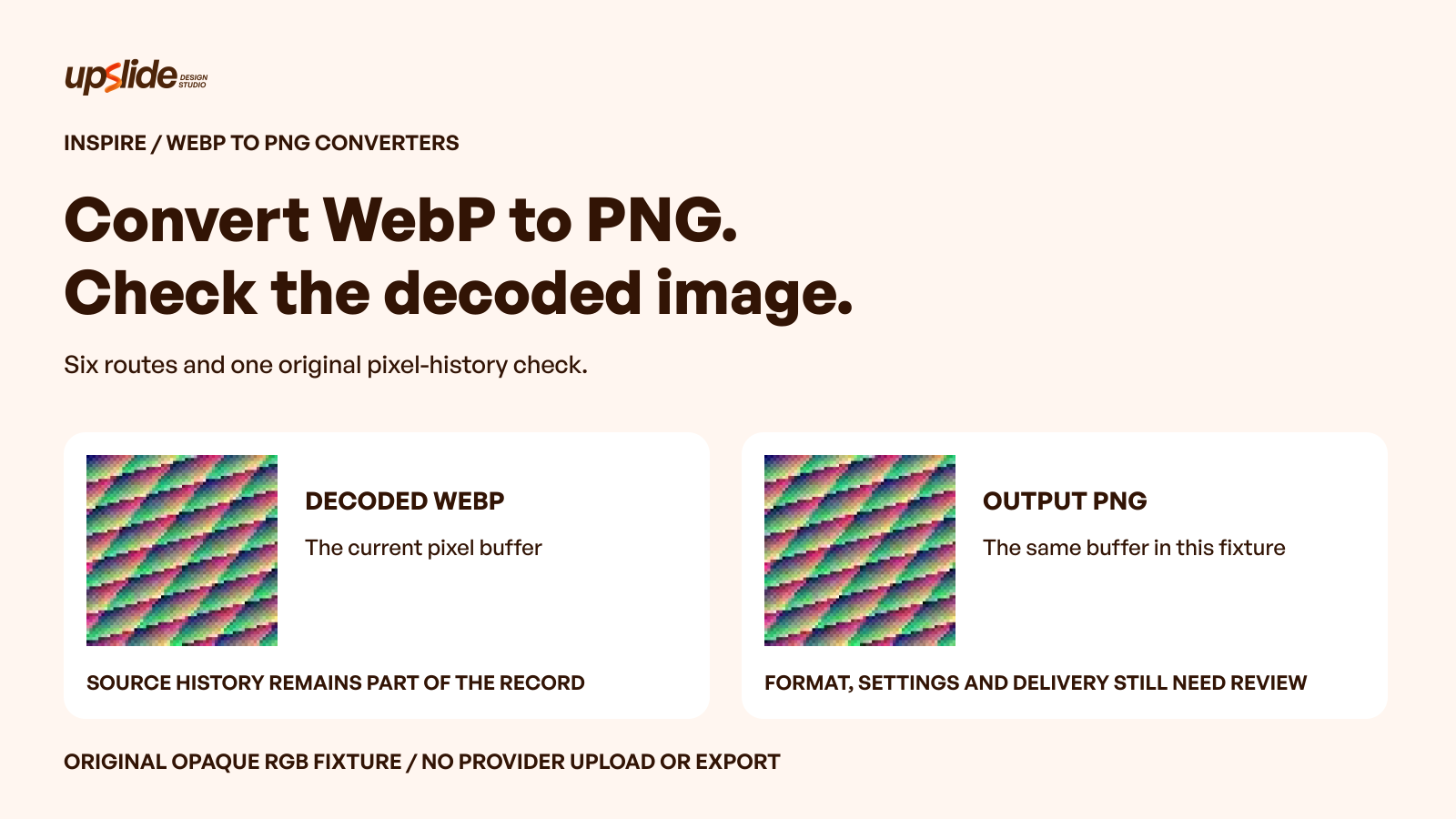
Inspect the original source PNG, lossless-route PNG and lossy-route PNG. These are the actual local fixture artifacts, separate from the explanatory graphic and any provider output.
The original source PNG contained 10,381 bytes. Both converted PNGs exactly matched the decoded RGB pixels of their respective WebP files. Only the lossless route also matched the earlier source.
For the lossy route, a pixel counted as changed when any RGB channel differed from the source. The largest absolute channel difference was 216. These are numerical observations about this artificial pattern, not a perceptual quality score or a claim that every changed pixel would be equally noticeable.
The byte lengths are also specific to this construction and configuration. They do not rank formats, predict a photograph’s saving or set a production budget. The experiment did not time conversions or run the six listed providers.
Explain why both conversion and recovery can have different answers
The lossy route passed the immediate conversion check: its PNG retained the raster decoded from its WebP. It did not restore the earlier pattern. A larger PNG file did not supply the distinctions missing from that decoded image.
That separates a conversion requirement from a recovery request. If an incoming WebP already contains an unwanted change, a faithful PNG conversion can faithfully retain it. The next useful action may be obtaining the earlier source rather than trying another output extension.
A real comparison should use consistent dimensions and a declared pixel representation. A colour transform or intentional resize changes the comparison condition; it should not be silently counted as a decoder defect or ignored as an encoding detail.
Create a short acceptance record
For a one-off delivery, a small record can capture the necessary decisions without making the handoff cumbersome. For repeated work, the same fields help identify exceptions.
| Record | Useful evidence |
|---|---|
| Received input | Original WebP, identity and known source history |
| Destination | Application requiring PNG and expected still/animated behaviour |
| Selected route | Tool, mode, build or account context |
| Operations | Encoding change plus any resize, orientation or other adjustment |
| Result | Actual format, dimensions and required image properties |
| Verification | Opened delivery, observed differences and unresolved checks |
Keep the received file alongside its derivative. If the destination transforms the upload again, inspect that delivered version too; a correct local file does not establish what another system eventually displays.
Use Daily Inspire to discuss image placement and visual treatment. A credited website preview cannot establish its original format, conversion settings or source history.
Frequently asked questions
Does converting WebP to PNG improve its quality?
It can provide the format a recipient needs, but it does not automatically recover an earlier image. In the original lossy route, the PNG exactly preserved the decoded WebP while remaining different from the pre-WebP source.
Can changing the filename from WebP to PNG perform the conversion?
No. A changed filename does not demonstrate that the encoded data changed. Use an actual conversion route, then open the resulting file independently and confirm that the receiving application accepts it.
Is a larger PNG proof that more original detail has returned?
No. Encoded byte length and recovered source information are different questions. The experiment’s lossy-derived PNG was larger than the source PNG, yet its decoded pixels still matched the lossy WebP rather than the original pattern.
Why can a PNG converter offer lossy processing?
The workflow can change pixels before encoding them into PNG. FreeConvert exposes such an option in its advanced settings. Inspect that operation separately from the lossless compression capability of the output format.
Will the conversion preserve a transparent background?
Both formats can support transparency, but the actual input and processing path need inspection. The experiment here had no alpha channel. It therefore supplies no transparency-preservation result for any listed tool or account.
What should happen with an animated WebP?
First establish whether the destination needs an animation or a selected still frame. Ezgif documents APNG output for animated inputs, which is different from assuming that conversion always means one still image. Inspect the chosen output’s playback and recipient support.
Does a browser converter always upload the image?
No general rule follows from a browser interface. Ezgif exposes local and server-related processing choices. Verify the selected operation and applicable handling requirements rather than assuming every feature in a service follows the same route.
When should conversion be avoided?
If the receiving workflow already accepts the WebP and no PNG-specific requirement exists, an additional derivative may be unnecessary. Keep the source identified and make conversion serve an actual delivery need rather than a belief that another extension always means higher quality.
Key takeaways
- Name the application or workflow that requires PNG.
- Compare conversion integrity and earlier-source fidelity separately.
- Inspect processing settings that can alter pixels or metadata.
- Verify the delivered file’s required properties and animation behaviour.
- Keep the received source; a larger PNG cannot reconstruct information already lost.
We help teams clarify visual production and handoff decisions. Explore Upslide’s design services when recurring image-delivery issues need to fit a broader product or website workflow.