

Which mockup generator will help you present a SaaS screen without making every revision a new composition? Start with the work that has to survive: the approved interface, the message around it and the change likely to arrive before the presentation is finished.
A screenshot editor, a device-scene library and an adjustable 3D workspace offer different forms of control. Compare their production routes rather than treating every attractive preview as the same product.
This guide compares six generators and includes an original crop-and-fit exercise using a fictional interface. Official capabilities were checked on November 2, 2026. No all-tool export benchmark, comparative speed result or claim of a completed client presentation is supplied.
Design task
Choose the presentation job before the scene
A supporting image for a launch page might need atmosphere and room for a headline. A product-review slide might need the exact screen and a visible action. An animated device scene has additional timing and delivery requirements.
Write that job in a sentence. For example: present a scheduling screen in a wide campaign image, preserve the primary action and keep a practical route to replace the screen after copy review.
Then identify the source artwork, destination dimensions, expected revision and whether motion is necessary. These are working requirements, not a guarantee that a tool's default scene will meet them.
Separate generators from downloadable scene files
A generator supplies a way to place artwork and produce a presentation. A downloadable mockup supplies a file whose editing structure and software requirements need their own inspection. Some resources provide both routes.
If the main uncertainty is finding a no-cost source and understanding its handoff restrictions, use the free-mockup guide. This article focuses on choosing a creation workflow, preserving the intended screen and testing a repeat revision.
A useful mockup workflow preserves the artwork while making the next presentation change manageable.
Resource collection
Compare the control you actually need
| Resource | Documented creation route | Useful selection question | Boundary |
|---|---|---|---|
| Shots | Screenshot and device compositions with motion presets | Do the layout and animation controls fit the presentation? | Confirm the chosen export and account route |
| Pika Style | Browser screenshot editor with frames and presets | Does a simple frame-and-background workflow cover the job? | Free exports currently carry a watermark |
| Artboard Studio | Browser mockup editor with image and video placement | Does the job need several scene categories or motion outputs? | Feature availability belongs to the selected plan |
| Rotato | Adjustable 3D device presentation and animation | Does the project need camera, reflection or timeline control? | Distinguish the particular app and delivery route |
| Mockuuups Studio | Device-scene selection and artwork placement | Does a photographed context suit the message? | Preview access doesn't describe every final-use entitlement |
| Canva | Mockups within a wider visual layout editor | Must the scene remain part of an editable campaign composition? | Editor access doesn't settle every content or export condition |
This is a production shortlist, not an image-quality ranking. A team can choose a simple route when it covers the actual task and reserve a more elaborate workspace for a requirement it can explain.
Shots: evaluate composition and motion as separate needs
Shots documents device styles, preset layouts, backgrounds, image and video support, zoom effects and animation presets. Its presentation includes custom frame sizes and social output contexts.
That makes it relevant when a team wants to assemble a screen-led visual without building a full 3D scene. Check the actual device, crop and export needed rather than relying on the site's one-click language.
If motion is part of the brief, inspect that route independently from a still image. A still composition doesn't demonstrate timing, readable pauses or the behaviour of an exported animation. No composition was exported from Shots for this guide.
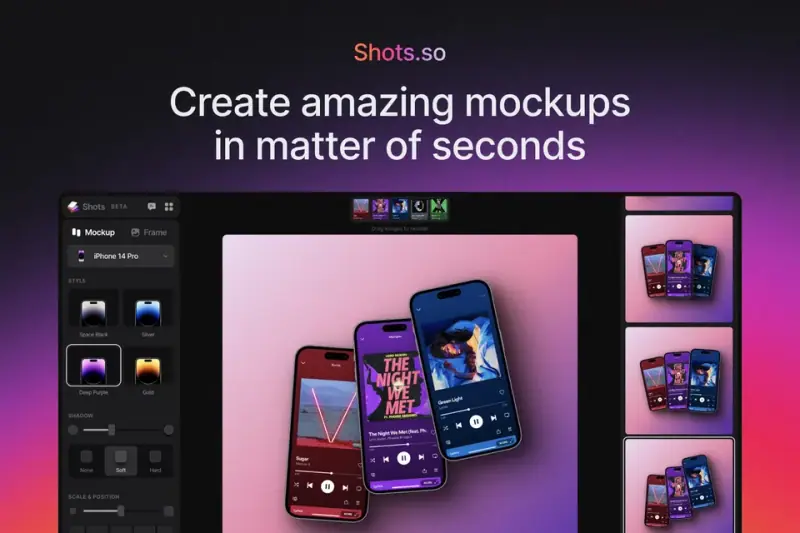
Existing actual public-source preview, visually inspected. Credit: Shots. The provider's presentation isn't a composition or export produced for this guide.
Pika Style: inspect the screenshot-to-layout route
Pika Style describes screenshot capture, frames, backgrounds, padding, shadows and presentation templates. Its current FAQ says the free browser route can export images with a small Pika watermark; paid features include additional output and preset controls.
This is a candidate when the job centres on a readable screen and a controlled background rather than a complex device scene. The selected output still needs to fit the destination.
Its FAQ also distinguishes browser editing from uploads involved in sharing or saving a preset. Treat that as the provider's description of particular routes, not a blanket privacy assessment for every project or integration.
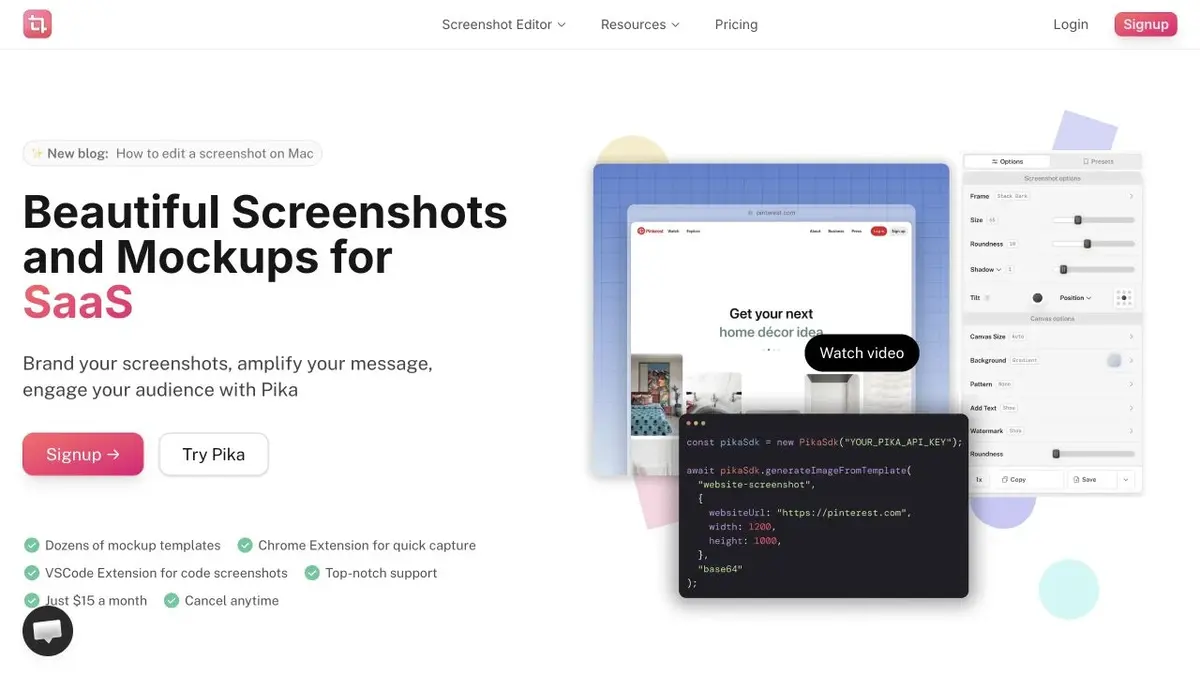
Actual public-page capture, November 2, 2026. Credit: Pika Style. No uploaded source, captured client page or exported result is represented.
Artboard Studio: choose the required surface and output
Artboard Studio documents a browser editor with device, print, packaging and other mockup categories. Its current FAQ distinguishes image and video placement and lists still and video export formats.
It is relevant when a team presents several kinds of design work or needs a motion route alongside still images. Select the surface that actually communicates the work rather than expanding the scene simply because more categories are available.
The site also offers prompt-based mockup generation. That is an additional route whose output needs inspection; it doesn't prove that exact interface details or physical geometry will remain faithful automatically.
Rotato: evaluate whether adjustable 3D earns the added work
Rotato's feature page describes device rotation, an animation timeline, backgrounds, shadows and reflection controls. It also documents an offline-first Mac workflow and several delivery options.
Those capabilities make it a candidate when perspective or motion is part of the intended communication. They aren't a reason to animate a screen that would be clearer in a straightforward frame.
The homepage and current plan page link the available product routes. Confirm the particular application, platform and export before selecting it; this guide doesn't transfer a Mac workflow's offline claims to every related web service or repeat the vendor's speed comparisons.
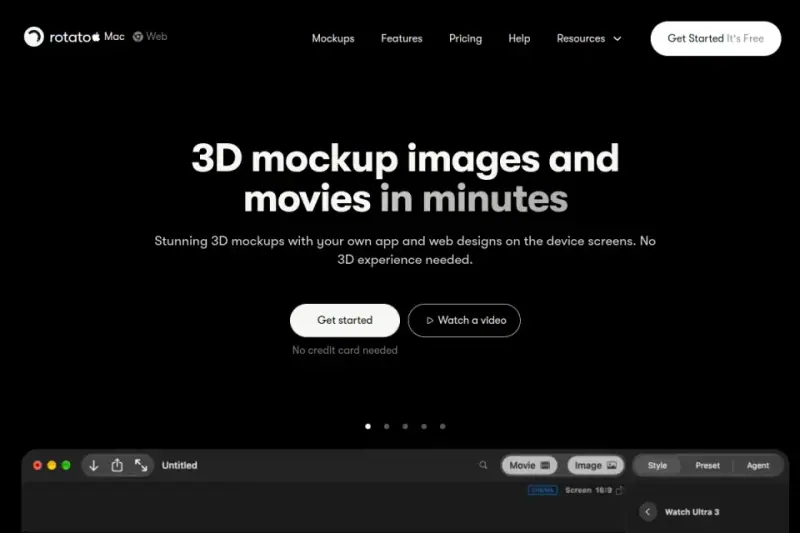
Existing actual public-source preview, visually inspected. Credit: Rotato. Provider artwork isn't evidence of a rendered scene or performance test by Upslide.
Mockuuups Studio: decide whether the photographed context helps
Mockuuups Studio's generator page presents device scenes and a drag-and-drop artwork route. The current page distinguishes previewing the collection from subscribing to remove the watermark.
Its scene-first approach is relevant when a person, desk or other environment helps explain where the screen belongs. Inspect whether that context supports the message or obscures the interface detail the audience needs.
Follow the selected route's current conditions before committing to a final export. This article doesn't inherit older comparison claims about free-tier commercial use, catalogue counts or identical export rights across its applications.
Canva: keep the mockup connected to the surrounding layout
Canva Mockups documents adding a scene inside a design, placing artwork and continuing with editing and sharing. That can suit a team assembling a broader campaign card or presentation around the mockup.
The important question is what remains editable in the surrounding composition and how the source artwork will be replaced. A convenient layout editor doesn't make an embedded interface screenshot editable as individual product controls.
Check the actual plan, selected content and export. The older create/mockups address redirected to a prototyping page during research; use the current Mockups destination rather than treating the historical route as unchanged.
Fit and limitations
Separate visual realism from faithful representation
A scene can look convincing while showing a distorted, cropped or outdated interface. Realism and fidelity answer different questions.
Compare the placed screen with its approved source. Check the name, numbers, selected state, visible action and the part of the screen the image is meant to explain. If a visual treatment changes one of those, assess whether the image still serves the message honestly.
For a conceptual presentation, label proposed work appropriately. A rendered screen in a device doesn't establish that the software is implemented, responsive or available to customers.
Preserve the expected revision
A launch image often changes after the first composition: a headline is revised, the product navigation changes or the screen needs a new state. Test a representative replacement before building a whole set around one route.
Record whether the replacement preserves the crop, positioning and surrounding elements. An automatic fit can be useful, but a changed source ratio may require deliberate adjustment.
An editable scene and a flattened export are different handoff items. Keep the maintained project or preset where the selected route supports it, and retain the approved source artwork separately.
Don't use a template count as the decision
A large catalogue can still lack the right orientation or visual context. A modest editor may cover a repeated screenshot task well if its controls and output fit.
Start with the actual scene requirements and shortlist a few plausible routes. Inspect the intended export and the expected revision instead of collecting a long list of template totals.
The useful comparison is the effort to reach an accepted deliverable. This guide has not measured that effort across products, so it doesn't provide a speed or cost winner.
Treat generated scene details as material to inspect
If a prompt-based route creates a surface or background, compare the final composition with the original product artwork. Look for changes to lettering, geometry, logos and content that should remain exact.
A generated visual can be an appropriate concept illustration, provided its role is clear. It shouldn't quietly replace the authoritative product screen when the image is intended to show actual software behaviour or content.
Use a deterministic placement route when the job requires controls that a generative route can't demonstrate. The decision should follow the required fidelity, rather than the novelty of the input method.
How to choose
Write a presentation brief that can be checked
Consider a fictional scheduling screen with a table and a bottom-right “Review request” action. The proposed campaign image is wider than the screen, and the action must remain visible.
The input and output ratios therefore differ. The team needs to choose whether the full screen should fit inside the scene or whether cropping is acceptable. That choice belongs to the message, not to an unchecked default.
The original exercise below uses synthetic interface artwork. It isn't a real SaaS product, a client result or a comparison of exports from the six tools.
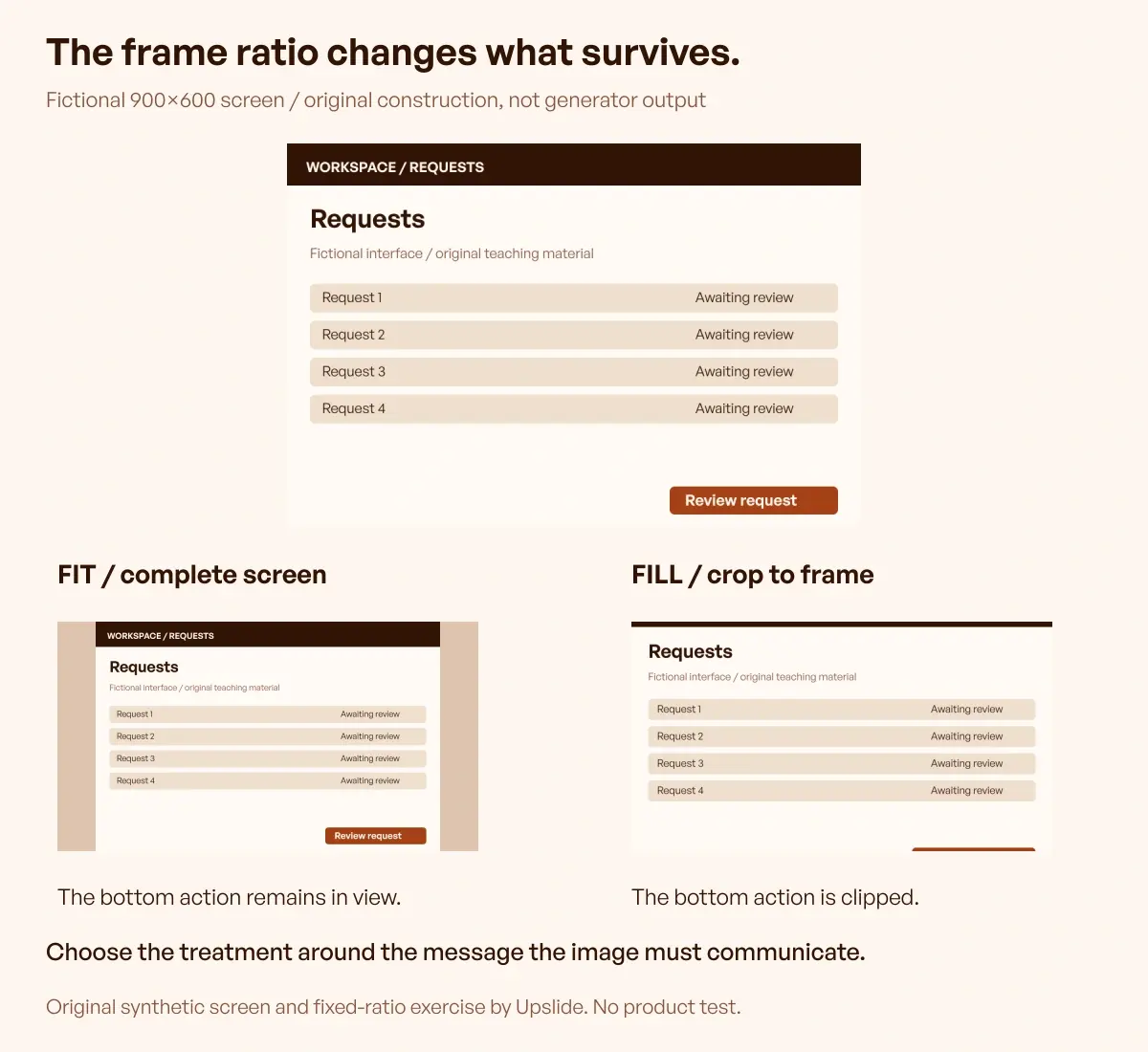
Original diagram by Upslide. Declared fit and fill constructions illustrate a composition trade-off; no listed tool was used to generate these outputs.
Compare fit and fill deliberately
Fitting the whole screen preserves the complete interface while leaving space around it inside a wider placement. Filling the placement uses more of that space but can cut off content when the ratios differ.
Neither choice is universally correct. If the message concerns the bottom action, hiding it defeats this brief. If the image is intended only to establish the presence of a dashboard, a declared crop might be suitable.
Keep the surrounding caption and headline in the review. They help determine which part of the screen the audience needs to understand.
Test the likely screen replacement
Prepare a second synthetic or approved source that represents the expected revision. Replace the first screen in the candidate workflow and inspect the result at the destination size.
If the revised screen is taller, check the crop again. If it contains longer labels, check readability. If the visual treatment relies on the original colours, inspect the revised relationship rather than assuming the first composition remains suitable.
Record the manual correction needed. A proposed workflow becomes easier to assess when the team can see what happens after the first attractive result.
Use an output check that matches the destination
| Destination | Evidence to inspect | What a preview alone can't establish |
|---|---|---|
| Website supporting image | Actual crop, dimensions and page placement | Loading behaviour or responsive implementation |
| Presentation slide | Screen visibility and surrounding message | Whether attendees can read it in their actual setting |
| Social card | Exported ratio and visible focal content | Platform cropping in every placement |
| Motion asset | Actual timing, readable pauses and delivery file | Product interaction or measured engagement |
Where the destination has its own upload and display rules, check the current requirements. Don't copy a scene's maximum export dimensions into a claim that the final placement is approved.
Make the source relationship recoverable
Keep the approved interface version, scene or project reference, output settings and meaningful changes together. A future teammate should be able to replace the screen without searching through anonymous files.
Identify which material belongs to the team and which comes from the selected service. Source ownership and usage terms remain necessary checks, even though this guide concentrates on production controls rather than repeating the free-file licence comparison.
If a relevant condition is unresolved, keep that output held or choose another route. A polished preview doesn't resolve a missing source, export or use requirement.
Update the workflow when the requirement changes
Reassess the route when the project adds motion, a new output ratio, a different platform or a more exact editing requirement. A new template release matters only when it changes a useful choice.
When a new Resource Box entry supplies a missing capability, compare it with the same brief and representative revision. Keep one current decision record so a new tool can be assessed against the requirements that shaped the existing workflow.
Continue in Resource Box and Inspire
Use Resource Box to open the six original creation routes. Choose around the controls and output the job needs, then verify the specific route and conditions.
Use Daily Inspire to study how screens support a complete page's message. Open and credit the original work. A gallery image doesn't prove which generator was used or that the underlying interface behaves as shown.
For organising a portfolio page around the work, continue with the portfolio examples guide. This article doesn't depend on a particular daily gallery edition.
Frequently asked questions
Which mockup generator is best for a SaaS launch?
Choose by the presentation job, required controls, expected revision and output. A simple screenshot editor, a photographed scene and adjustable 3D can each fit different needs. This guide doesn't report a comparative quality winner.
Is a mockup generator the same as a prototype tool?
No. The generators here primarily present artwork in a composition or scene. A prototype serves an interaction-testing task. A screen shown inside a device doesn't prove that its controls work.
Should every product screenshot be placed in a device?
Only when the frame or scene helps the communication. A straight screenshot can be more useful for detailed review, while a scene can establish context. Choose the presentation around the audience's question.
Should I fit or crop the screenshot?
Decide which content the image must preserve. Fitting can retain the full screen; filling a different ratio can crop it. Inspect the actual result and keep consequential actions or information visible when the brief requires them.
Are Pika exports free of watermarks?
Its current official FAQ says the free route includes a small watermark and paid access removes it. Check the current route before promising an output; this article doesn't transfer that condition to unrelated Pika-branded products.
Can a generative mockup preserve an interface exactly?
Don't assume it will. Inspect the result against the approved source and use a route whose controls meet the required fidelity. Label conceptual scenes appropriately when they could otherwise imply real product evidence.
How do we avoid rebuilding every image after a product update?
Retain the source version and maintained scene or project where supported. Test one likely replacement before committing the workflow, then document the crop and correction needed for changed source dimensions or content.
When should we revisit the tool choice?
Revisit the decision when inputs, editing controls, export conditions or product routes change. Compare a new resource when it addresses a meaningful requirement, rather than replacing a working process for novelty alone.
Key takeaways
- Define the presentation job and expected revision first.
- Compare creation routes by their actual controls and outputs.
- Inspect fidelity separately from visual realism.
- Choose fit or crop around the content the message needs.
- Keep the source relationship and unresolved conditions recoverable.
We help SaaS teams make their product and website design clearer. If the underlying screen needs work beyond its presentation, discuss the design challenge with Upslide.