

Does your recording contain the right window, the intended sound and a result someone else can actually open?
A finished-looking video can fail any of those checks. A microphone can pick up your explanation while the application's sound is absent. A hosted link can work for its creator while the colleague receiving it lacks access.
A file can exist without containing the source you intended to show.
For designers and SaaS founders, start with the demonstration: what must the viewer see and hear, and where will they receive it? Then compare recording routes against that job. Automatic zoom, attractive backgrounds and AI cleanup are useful only after the essential material is captured.
This guide compares six documented routes and an original recording exercise. Sources were checked during 2–3 November 2026 in India. We created synthetic browser recordings for the exercise; we did not test six provider accounts, record a person's voice or measure tool reliability.
Choose the capture channels and the delivery object separately.
Design task
Define the explanation before pressing Record
Imagine a fictional task-management product whose draft changes are saved without being published. A demonstration needs to show the selected task, the status change and the confirmation. It might also need spoken explanation or a meaningful application sound.
These are separate requirements. Seeing the correct action does not establish that narration was captured. Hearing the microphone does not prove that the application audio was included.
Write a brief capture specification:
| Requirement | Decision to make |
|---|---|
| Picture | Specific window, browser tab, region or entire display |
| Explanation | Microphone narration, on-screen explanation or both |
| Application sound | Needed, deliberately excluded or still unresolved |
| Camera | Necessary context, optional or distracting |
| Destination | Local file, hosted review link or maintained editing project |
| Audience | Who needs access, and what they must be able to inspect |
Use a prepared fictional workspace when evaluating an ordinary recording workflow. Keep unrelated messages, notifications and customer records outside the source. A narrow capture area can help, but it does not replace reviewing the actual recorded result.
Separate capture from later production
This article selects tools for recording existing activity. It does not compare generated video scenes, select a caption generator or rank complete editing applications.
A recorder can feed those later processes. However, being able to add a caption or trim a clip cannot recover information that was never recorded. A demonstration's acceptance criteria should identify the visible sequence and required sound before the finishing treatment.
Resource collection
Six recording routes to investigate
The comparison describes current documented workflows. It is not a performance leaderboard or a claim that every route offers identical behavior across operating systems.
| Resource | Recording route | Important boundary |
|---|---|---|
| Screen Studio | Mac capture with cursor, zoom and framing controls | Local work, cloud-related features and shared links need separate qualification |
| Microsoft Clipchamp | Screen or screen-and-camera capture feeding an editor | Personal/work workflow, source selection and shared audio differ |
| Descript | Desktop recorder feeding a project or Quick Share | Quick Share changes publication and input-track structure |
| OBS Studio | Scenes assembled from selected picture and audio sources | Configure actual sources and inspect the local result |
| Loom | Desktop or extension capture with hosted sharing | Tab audio differs from desktop audio; downloads require qualified access |
| Tella | Screen/camera recording feeding editing and hosting | Native/browser route, temporary trial and output gates matter |
Screen Studio: distinguish the Mac recording from sharing
Screen Studio is a Mac recorder with documented cursor and zoom treatments. These can help direct attention in a product walkthrough, provided the resulting framing still shows the information the viewer needs.
Its system-audio guide documents choosing sound from all applications or selected applications. This is a more specific choice than assuming that everything audible at the desk belongs in the recording.
The shareable-link guide describes a streaming-link workflow separately from file export. It currently states a limit for shared recordings and directs longer projects to a file route. Confirm the current condition for your actual delivery rather than treating recording length and hosted-link length as one allowance.
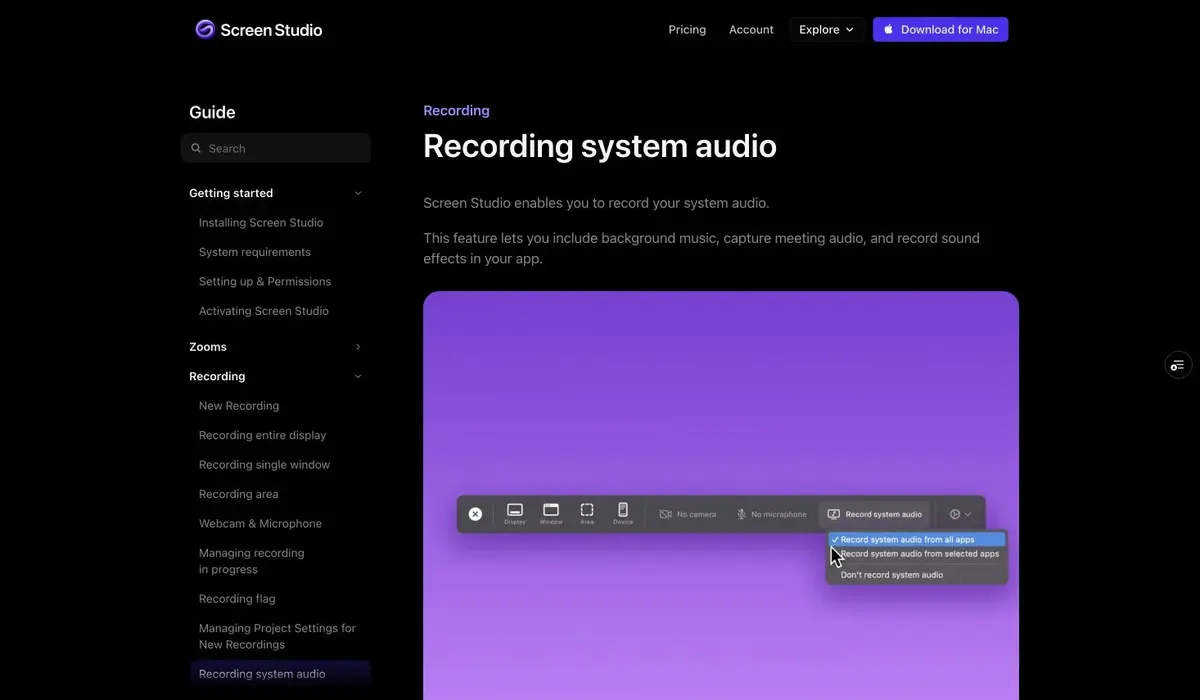
Credit: Screen Studio. Actual public system-audio documentation and provider toolbar illustration, not a recording made with an Upslide account.
There is a public-source conflict to resolve for sensitive work. The homepage FAQ makes categorical local-processing statements, while the same page lists cloud transcription and sharing-related features. Qualify the selected feature and its current data handling before making a local-only promise.
Clipchamp: match the source and account route
Microsoft's screen-recording guide separates personal and work-account instructions. Both can feed a recording into an editing workflow, but the route and capture settings deserve explicit review.
The personal instructions distinguish microphone narration from sharing audio with a browser-tab recording. A window or display selection should not be assumed to capture the same internal audio as a shared tab.
The guide also distinguishes the original WebM recording from an edited project exported as MP4. The initial captured file is therefore a different handoff object from the finished edited video.
Screen and camera recordings can be placed separately in the editing timeline. That is useful when the camera obscures a control, but inspect the maintained project rather than assuming every exported file preserves independently movable sources.
Use the instructions for the actual account and browser combination. No camera, microphone permission, Clipchamp recording or export was performed for this comparison.
Descript: Quick Share changes what happens after Stop
Descript's desktop recorder guide documents a consequential switch. With Quick Share enabled, a recording is published to a share page and the inputs are combined. With it disabled, the recording opens as an unpublished editing project with separate screen, microphone and camera inputs.
That distinction affects both review and revision. A person expecting a private editing step should not assume that stopping the recording always leaves an unpublished project.
The same guide distinguishes desktop computer audio from browser recording. Its web editor route captures the recorded tab's audio rather than system-wide sound. The desktop route has its own input and operating-system permission requirements.
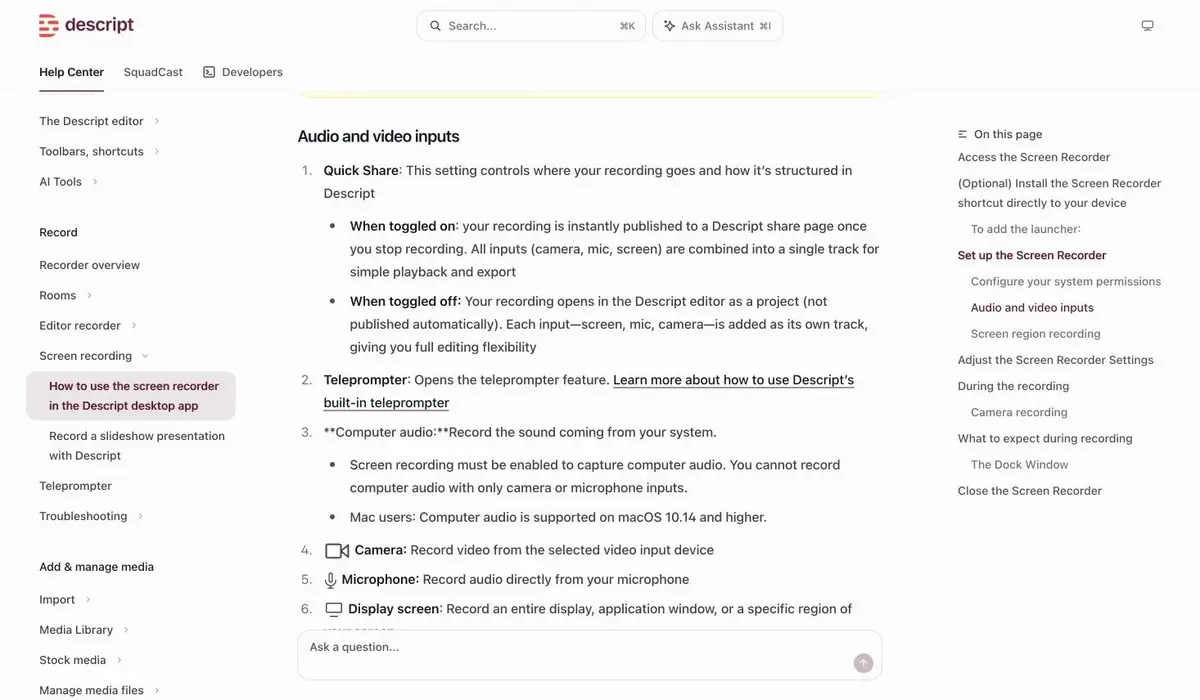
Credit: Descript. Actual public documentation; no device permission was granted or provider recording made by Upslide.
The guide says recordings upload in the background. A native desktop launcher therefore does not establish a local-only workflow. Current plans use Media Minutes; check the current plan against the required recording and output rather than importing old plan names from a comparison blog.
OBS Studio: inspect the sources, not just the preview
OBS Studio is free, open-source recording and streaming software. Its Quick Start Guide explains scenes, visual sources, audio setup and a test recording before the actual session.
This suits a workflow where the operator needs to define the composition deliberately. However, a blank scene, a selected microphone and the correct display are different setup states. Treat the preview and audio meters as useful checks, then inspect the saved result.
The macOS Screen Capture source guide documents display, window and application capture, with audio availability depending on macOS version. Do not copy a Windows source recommendation into a Mac setup without checking that distinction.
A local file can be the desired handoff. If the job also requires a review page, audience access or comments, specify how those will be supplied separately. This article does not claim an OBS installation, a configuration benchmark or a universal recording-length guarantee.
Loom: hosted access and MP4 access are different
Loom's desktop guide documents display, window and custom-size capture, with account-dependent features. Compare the actual client and operating-system route rather than assuming all recording controls are interchangeable.
Its system-audio guide makes another distinction: the Chrome extension captures internal audio from the selected current tab, while desktop recording can capture application audio. An enabled microphone is a separate input.
The download guide places local MP4 downloads behind plan and role conditions. It explicitly excludes Starter Free downloads and identifies administrative restrictions that can apply elsewhere.
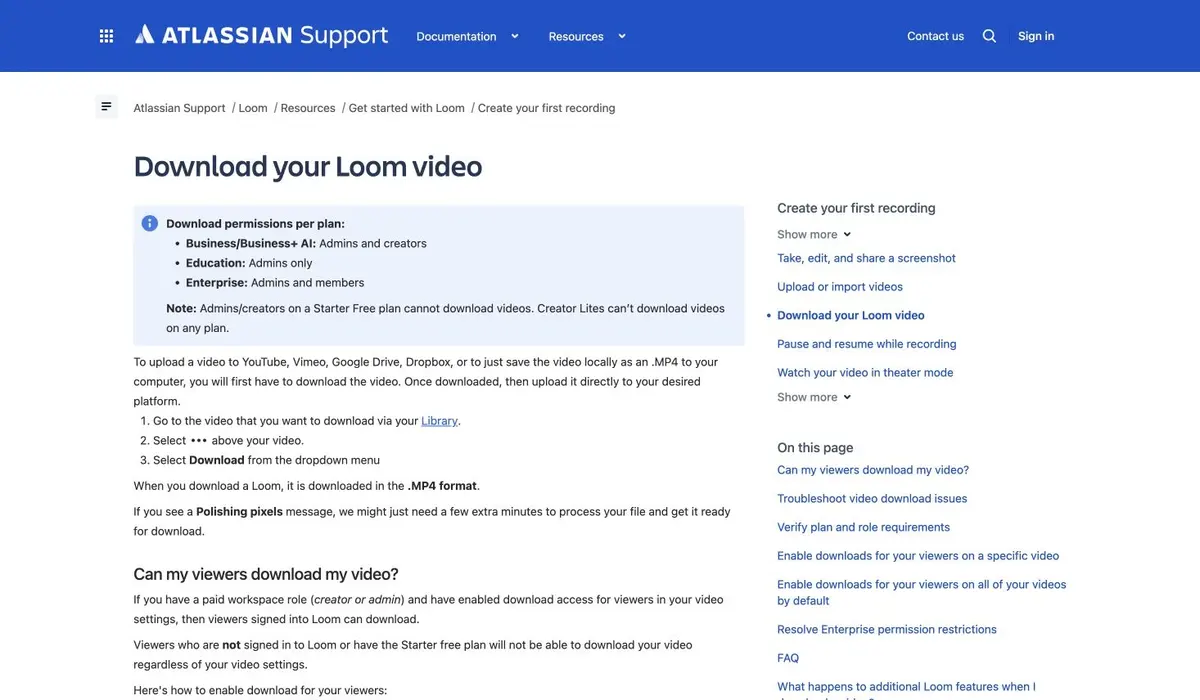
Credit: Atlassian/Loom. Actual public documentation; this is not a private video, account screen or successful download by Upslide.
Check current pricing alongside the role needed for the handoff. A working hosted link is not proof that a colleague can retain the required local file. Nor should player-specific features automatically be assumed to survive an MP4 download.
Tella: qualify recording, upload and the trial
Tella's recorder page documents browser and native routes, separate screen/camera streams and recording in smaller clips. It says footage uploads while recording and opens in its editor afterward.
That is useful to investigate when capture, adjustment and hosted delivery belong in one workflow. It is also a reason to decide what may enter the recording before starting it. Upload behavior matters independently of whether a public share link has been created.
Current pricing distinguishes export, playback, branding and other plan features. An available recording control does not establish the same resolution or customization at every later delivery step.
The product FAQ describes temporary trial access. Keep that separate from an ongoing free plan when assessing a repeatable workflow. Do not base a month's production on a temporary evaluation allowance.
This guide does not claim that Tella generated a finished demo for us, that every advertised source works on every platform or that automatic cleanup preserves every important explanation. Review those in the selected route.
Fit and limitations
Picture, microphone and application sound are separate evidence
A visible animated interface proves only that picture data is present. A microphone can record the room while missing the intended application sound. Conversely, a recorded application sound does not establish that the narration was included.
Check the source of each required channel. Where the recorder supports separate inputs, retain that separation if later correction needs it. A mixed result may play correctly while offering less revision control.
Playback is still necessary. Track metadata cannot establish that a spoken sentence is understandable, that the expected sound occurred at the right moment or that an important action was visible throughout.
Resolution does not certify a useful explanation
Inspect the demonstration at its receiving size. If a person needs to read a status label, an overall resolution badge is insufficient evidence that the label remains legible in the actual placement.
Automatic zoom can direct attention but can also remove surrounding context. A useful review asks whether the viewer can connect the selected action with the resulting state. Avoid an unexplained quality score that mixes text size, sound and editing preference.
Compare representative material using the same destination requirements. This guide provides no standardized hardware, encoder, dropped-frame, CPU-load or crash-rate experiment.
How to choose
Inspect our actual synthetic recording exercise
We built a fictional Frame Desk canvas with an animated square, an instruction and a changing frame counter. Two browser actions recorded that canvas using MediaRecorder. No desktop, camera, system audio or microphone was selected.
The first actual WebM contains a video track without an audio track. The second combines a video track with a deliberately generated oscillator supplied directly to the recording stream. That sound is synthetic input, not captured narration or a recorded application.
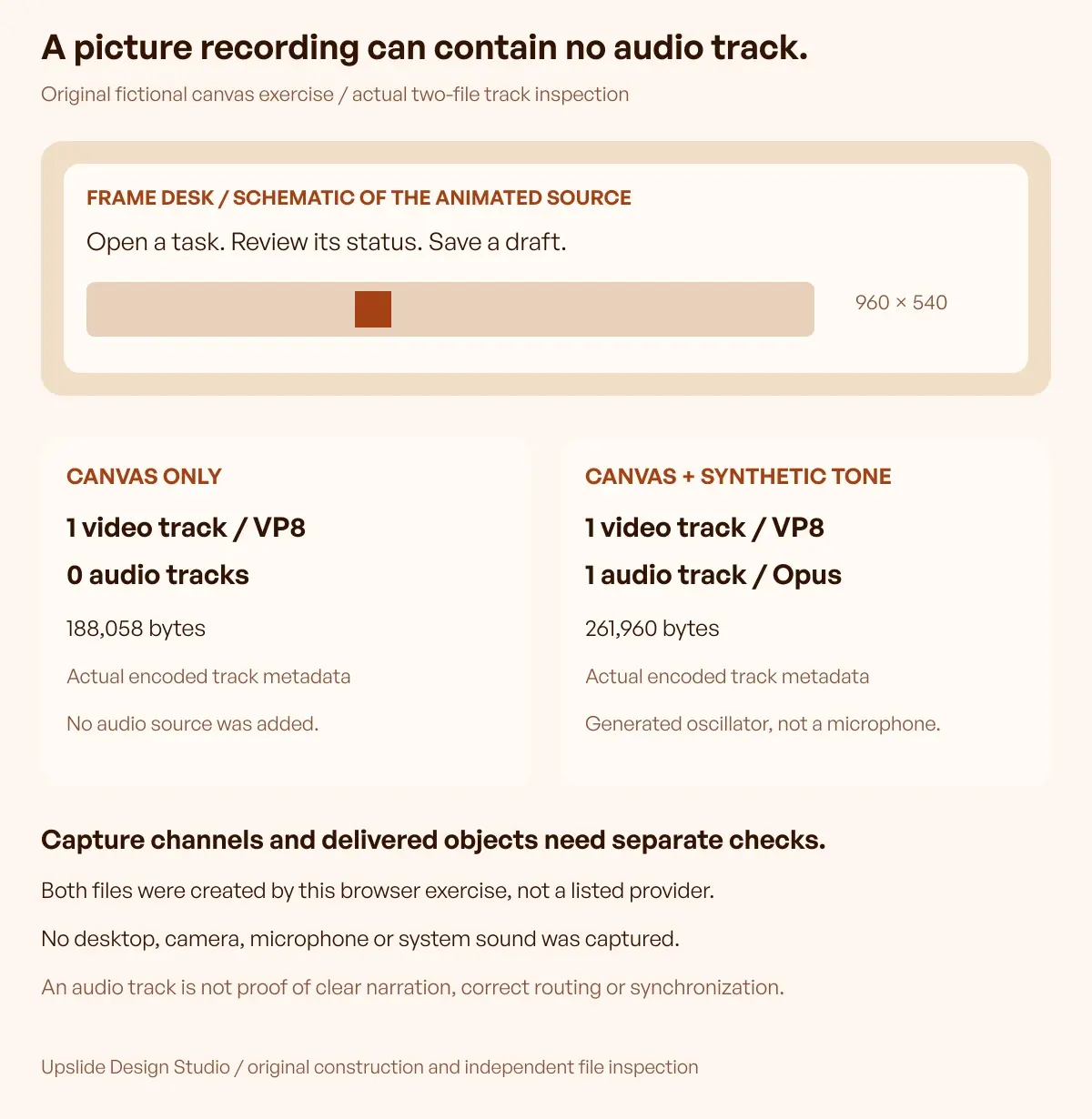
Original construction by Upslide Design Studio. Two actual synthetic canvas recordings; no featured provider or device-capture test.
| Actual file | Picture track | Audio track | What this establishes |
|---|---|---|---|
| Canvas-only WebM | One VP8 video track, 960 × 540 | None | A picture recording can contain no audio track |
| Canvas with synthetic tone | One VP8 video track, 960 × 540 | One Opus audio track | Adding an audio source changes the recorded file's track structure |
We retained both files and inspected their encoded track metadata independently of the page's own result display. The second recording was also played in the browser. This does not establish microphone quality, correct system-audio routing or compatibility with every receiving player.
The point is a repeatable acceptance question: what was actually retained? A recording button, filename or plausible preview cannot answer every channel and delivery requirement.
Run a short capture rehearsal with the intended setup
Prepare a permitted source containing the kinds of changes your real demonstration must show. State which sounds should be present and which should be absent. Include one ordinary transition between views if that belongs in the final explanation.
Record a short rehearsal using the actual selected route. Play its output and check the source, important action and required sound. If something is missing, identify the failed channel rather than assuming that a different background or export preset will fix it.
Also check whether the recorder's controls, notes or camera overlay enter the captured image. Their appearance in a live preview can differ from what the selected route actually records. Confirm the result before producing a longer explanation.
Test the receiving object
For a local-file handoff, open the real file outside the recorder and verify that the receiving environment accepts it. Keep the maintained source when future trimming, source replacement or layout changes are expected.
For a hosted-link handoff, verify access as the intended audience. Record whether viewing requires an account and whether download permission is actually needed. A creator's successful preview does not establish another person's access.
For an editing-project handoff, check the inputs that remain independently changeable. A screen and camera shown together in the final picture do not establish that their original sources survive separately in the file.
Keep a compact recording acceptance record
| Record | Useful evidence |
|---|---|
| Source | Selected tab/window/region and representative action |
| Channels | Required microphone, application sound and camera inputs |
| Result | Actual picture and sound observations during playback |
| Delivery | File or link, audience access and unresolved limitation |
| Revision | Maintained project/source and the next change it must support |
Keep failures specific. “Correct picture, missing application sound” points to a different follow-up from “sound correct, intended viewer cannot open the link.” Do not collapse both into a general statement that the tool is unsuitable.
Continue in Resource Box and Inspire
Use Resource Box to revisit the six routes and current official documentation. Choose a tool for the capture and handoff the project actually requires.
Use Daily Inspire to study where a page places its explanation and supporting media. Credit the original site. A gallery preview cannot establish which recorder was used, what sources were captured or how well a real viewer understood it.
The published SaaS website examples guide can help define the page's communication purpose. This resource comparison uses existing tools and an original exercise; it does not depend on a new daily gallery edition.
Frequently asked questions
Does recording my screen automatically record its sound?
No universal guarantee follows from picture capture. Microphone, browser-tab audio and system audio can be separate inputs with different route conditions. Play a representative output and inspect the sound the explanation actually needs.
Is a cloud link the same as a downloadable recording?
A link provides a viewing route under its access conditions. A downloadable file is a separate deliverable that can have plan, role or administrative requirements. Verify the required handoff before recording toward it.
Can a desktop recorder still upload while recording?
Yes. Descript and Tella document upload behavior in their recording workflows. A native launcher alone does not establish that the selected operation remains local.
Is a temporary trial an ongoing free recording plan?
No. Check the current provider's description, account conditions and what happens when the evaluation ends. Keep an ongoing free route separate from temporary access when planning repeated production.
Do separate screen and camera sources survive every export?
An editing project may retain them separately while a rendered video combines them into one picture. Inspect the actual project and required file. Do not infer continued editability from a picture-in-picture layout.
Were the two example files made with these six tools?
No. They were created by an original browser canvas and MediaRecorder exercise. The audio in one file is deliberately synthesized; no person's microphone or device audio was recorded.
Does an audio track prove the explanation is clear?
It proves an audio track exists in the inspected file. It does not establish correct words, useful volume, synchronization or comprehension. Those need actual playback and appropriate review.
When should the recording setup be checked again?
Rehearse again when the device, client, account route, source, audio setup or delivery requirements change. An earlier successful recording does not automatically verify a different configuration.
Key takeaways
- Define the source, sound and receiving object before choosing a recorder.
- Qualify browser and desktop audio separately.
- Review the actual recorded picture and required sound.
- Distinguish hosted access, local downloads and maintained projects.
- Retain specific acceptance evidence and unresolved limitations.
Use the synthetic file exercise as a starting review brief. Our free UI/UX course supports practical design learning while applying the same neutral selection criteria to every resource.