

When you choose a collage maker, are you trying to collect several pictures on one canvas or make a particular relationship between them clear?
A travel summary, a product collection and a sequence of workshop images can all use the same grid while needing different selections and arrangements. Filling every cell does not establish that the intended images are present, in the appropriate order or shown with enough context.
This guide compares three documented creation routes and develops an original local assembly exercise. It treats image selection, composition, maintained work and the delivered file as related decisions, with separate evidence for each.
Review which images the collage contains as well as how the finished arrangement looks.
Design task
Give the collection a purpose
Start with a sentence describing the collage's job. A selection of product variants needs to distinguish those variants; a process sequence needs to explain what happened. An informal memory board can allow a looser relationship.
The purpose determines the useful selection. Several near-identical pictures can occupy space without adding information, while one missing view can make a product collection incomplete. Choosing a larger template does not resolve either problem.
Define the destination too. A static image, a printed object and an animated composition have different delivery requirements. A maker's attractive example should not decide which of those objects the recipient receives.
Before browsing layouts, record:
- The subject or story the collection should communicate.
- Any images or details that must appear.
- Whether sequence, labels or grouping carry meaning.
- The intended output and viewing context.
- The person responsible for the next correction.
These notes describe a project, rather than a universal aesthetic formula. A decorative scrapbook and a factual comparison should not inherit the same acceptance conditions merely because both combine pictures.
Select images together, not one at a time
Consider how the pictures work as a set. A wider view can establish context while a closer view supplies detail. Another photograph of almost the same moment may be useful, but repetition should be deliberate.
Keep the original files and a small source record. Similar thumbnails or filenames can make accidental substitutions difficult to notice. Identify the approved version before reducing several pictures to one flattened export.
Also review whether the pictures can be combined in the intended context. A collection can imply a shared event, location or chronology even when its sources describe different circumstances. Labels or surrounding explanation may be necessary to avoid that implication.
Separate the arrangement from its proof
An attractive grid answers a visual question. It does not establish permission, correct source identity or whether an actual export preserves the intended result.
| Decision | Useful question | Evidence to retain |
|---|---|---|
| Selection | Are these the intended images and versions? | Approved source set and relevant credits |
| Arrangement | Do scale, grouping and order serve the purpose? | Reviewed composition and necessary labels |
| Maintenance | Can the next editor replace the appropriate picture? | Accessible maintained project and source record |
| Delivery | Does the actual file fit its receiving context? | Reopened export and placement review |
The published graphic-design software guide covers the broader editor and source-handoff decision. Here the particular task is assembling multiple images into one useful communication.
Resource kit
Compare three documented starting routes
The following descriptions use official public information checked on 5 November 2026. No provider account, image upload, editor, download or print order was operated for this comparison.
| Route | Documented starting point | Decision to verify |
|---|---|---|
| Adobe Express | Upload images, explore layouts and continue editing | Required composition, assets and delivery route |
| BeFunky | Preset, wizard, freeform and custom approaches | How the selected layout handles the whole image and its cells |
| Fotor | Select a layout, add pictures and customize the collection | Actual account controls, selected features and final output |
All three already appear in Resource Box. Start with an existing capable route when it meets the brief. A different tool is useful when it resolves a concrete limitation, rather than simply adding another set of templates.
Adobe Express: distinguish the quick result from further composition
Adobe's current collage instructions describe Photo, Collage maker, image upload and Shuffle layout. They distinguish downloading from continuing with Edit more, including replacement and crop controls.

Credit: Adobe Express and displayed creators. Unchanged official collage-page illustration retrieved 5 November 2026; original creation date unknown. It is not a project, edit or export performed by Upslide.
This is a useful starting route when several images need a composition before further design work. Inspect the proposed layout against the actual collection rather than assuming an automatically suggested arrangement understands the intended story.
The collage product page also describes image editing and other design options. Keep the required output explicit; adding animation creates another delivery question, while selected assets and account conditions still need checking.
BeFunky: choose how the images meet the frame
BeFunky's current first-collage help distinguishes its layout approaches. It describes a wizard that shows whole selected images, presets that crop according to the cell, and a freeform route with individually placed layers.

Credit: BeFunky and displayed creators. Unchanged official product-page illustration retrieved 5 November 2026; original creation date unknown. It supplies workflow context, not evidence that Upslide used the editor or tested automatic placement.
That distinction matters when the collection contains required information near an image edge. Choose the relevant layout approach, then inspect the actual result. A feature description does not settle whether the chosen framing serves the project.
BeFunky's whole collage tutorial distinguishes saving an image from Save as Project for later editing. Verify that route with the actual account and next maintainer; a final picture and a reusable arrangement are separate deliverables.
Fotor: inspect the selected controls and output
Fotor's collage help describes selecting a layout, adding pictures, changing the layout and downloading or sharing. Its dated instructions are a workflow reference rather than proof that every current interface detail remains identical.

Credit: Fotor and displayed creators. Unchanged official collage-page illustration retrieved 5 November 2026; original creation date unknown. Its sample photographs and words are provider examples, not an Upslide project or measured outcome.
The current collage page describes swapping pictures, adjusting spacing and refining the canvas. It also makes broad quality and automatic-cropping claims that this comparison has not tested.
Confirm the actual download, dimensions and selected feature access before relying on the route. No blanket watermark, free-export, print-quality or automatic preservation guarantee follows from the public examples shown here.
How the pieces work together
Prepare a small source set before opening layouts
Collect the permitted originals and identify what each contributes. Keep a reason for inclusion alongside any required credit or context. This makes it easier to remove a redundant picture without accidentally removing the only view of an important detail.
Prepare individual images where necessary, while preserving the originals. An inconsistent exposure can distract from a collection, but applying the same filter is not automatically an accurate correction. For factual comparisons, editing should not manufacture the difference being illustrated.
Name the intended versions clearly. If a corrected photograph replaces an earlier one, identify which copy belongs in the collage. The editor's most recent thumbnail is not an approval record.
Choose the canvas around the receiving use
Obtain the intended placement's dimensions and output conditions. A wide website image, a portrait announcement and a printed arrangement can require different compositions. No universal canvas or print specification is prescribed here.
Decide whether the collage should be read as a sequence, a grouped collection or a free arrangement. If chronology matters, make the intended order explicit through composition or labels. Do not rely on the template's default ordering to communicate an unstated sequence.
Choose the number of cells around the collection. More cells can make individual pictures too small for their purpose. Fewer cells may be clearer, but only if the omitted material is genuinely unnecessary or available elsewhere.
Inspect each placement and the collection together
A picture can be recognisable in isolation and lose its important detail inside a small cell. Review the complete arrangement and each image's framing. Required labels, product features or contextual objects should not disappear simply to fill the available shape.
Changing a cell's shape can change the visible area without changing the source file. The existing crop workflow addresses that separate framing problem. This guide's original exercise below preserves each whole source so that it can isolate image identity and order.
Then compare the assembled collection with the approved set. Look for repeated images, omitted views, unintentional swaps and obsolete versions. A grid with no empty cells can still fail those checks.
Add words and decoration for a clear purpose
A short caption can explain a location, date or relationship that the images cannot establish alone. Keep necessary context associated with the relevant picture instead of relying on an ambiguous page-level heading.
Decoration can connect the collection, but it can also cover information or compete with the subject. Review the actual amount of text, real photograph and intended viewing size rather than approving a template's short sample copy.
For an ordered process, confirm that labels agree with the picture positions. A visible number and the wrong source can create a convincing but inaccurate sequence. Check the relationship rather than treating text and images as unrelated finishing passes.
Save the maintained composition and the delivery
Retain the version that supports the next expected change. Identify who can reopen it, where its sources are stored and which assets or account conditions affect editing. Another person's access should be tested when maintenance is part of the requirement.
Export the required format and reopen that actual file independently of the design preview. Inspect dimensions, picture inclusion, order, visible context and any required transparency or watermark condition.
Finally, review it in the receiving placement. A correctly assembled full-size image may become too small to explain its details after placement. For physical production, obtain the relevant provider requirements and an appropriate proof; a screen image cannot settle the printed result.
Limitations and alternatives
A collage can imply more than its source images establish
Adjacent pictures can suggest a shared occasion or a before-and-after relationship. Confirm that this is the intended and supported interpretation. If the images show different contexts, explain those differences rather than allowing a decorative arrangement to imply a controlled comparison.
Preserve the distinction between an original photograph, an edited photograph and an illustration. If generated or reconstructed content is included, represent it appropriately for the communication. A plausible visual is not evidence of a real event or product condition.
Permission and privacy apply to every included source
A maker's availability does not establish the rights to photographs, fonts, templates or decorative assets placed inside it. Identify the actual sources and applicable conditions for the intended distribution.
Also consider the information visible within each picture. Combining several small images can expose a name, document or location that was not obvious in the initial thumbnails. Review the delivered result and permitted processing route before distributing private material.
This guide supplies no legal clearance or security assessment. Its original exercise uses entirely authored synthetic illustrations, without personal photographs or a downloaded stock-image collection.
Separate images may serve the task better
A single collage is not always the most useful delivery. Separate images with captions can preserve detail, allow a flexible layout or make a sequence easier to explain. A gallery can also allow closer inspection when the receiving site supports it.
Use one composite when its combined relationship helps the reader and its details survive the intended size. Keep the original images available when later destinations may need a different arrangement.
Worked example
Declare four studies and a project-specific order
The fictional exercise collects four original geometric illustrations: an arched window, a plant, a vessel and a lamp. They are teaching constructions, not photographs of real objects or outputs from the compared providers.
Each source is an actual 384 × 240 PNG. Its identifying letter and artwork were created locally, using the bundled General Sans lettering outlined before rasterization. No source is cropped or resized when assembled into the exercise's canvas.
The declared contract requires A, B, C and D in that order, read across the first row and then the second. This order belongs to this teaching brief. It is not a general requirement for every decorative collage.
Write and reopen three actual collages
The canvas is 840 × 552 pixels, with a 24-pixel outer margin and a 24-pixel gap between cells. Those values describe the constructed specimen, without prescribing a platform size or universally appropriate spacing.
Three PNGs were written. After reopening each file, the checker extracts the four declared cell regions and compares their actual pixel identities with the four saved source images. It does not merely read a proposed list of filenames.
| Actual output | Recovered cell order | Distinction exposed |
|---|---|---|
| Baseline | A, B, C, D | All required sources and the declared order match |
| Duplicate | A, B, B, D | Four filled cells, but C is missing and B is repeated |
| Reordered | A, C, B, D | All four sources remain, but the declared sequence differs |
The three files share the same dimensions and cell geometry. A dimension check or empty-cell check alone would therefore miss the constructed content errors.
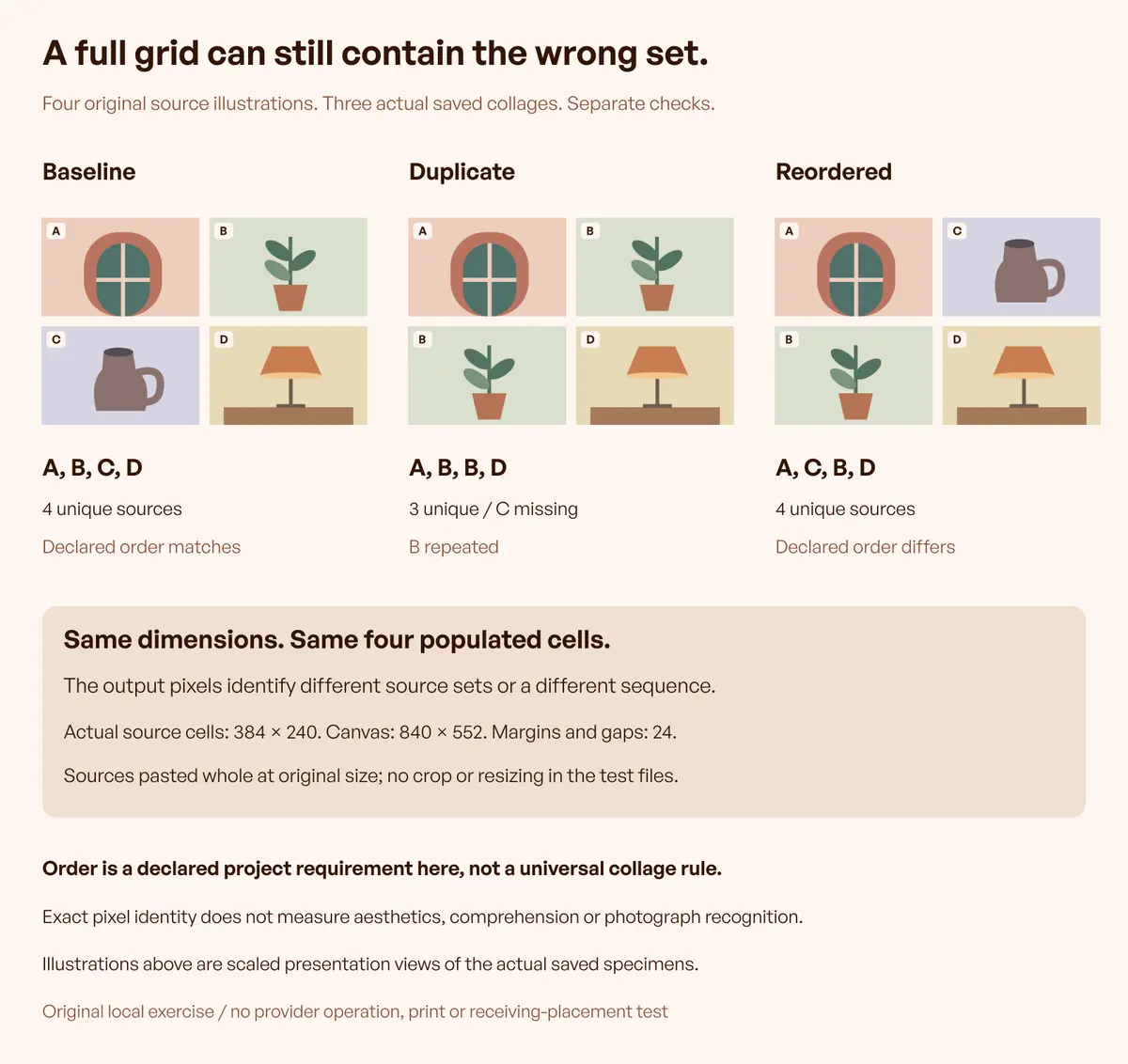
Original Upslide synthetic illustrations and actual local PNG assemblies. Cell identity, required-source coverage and declared order were checked after reopening. No provider editor, account export, print, placement or participant test was performed.
Keep the meaning of a passing check narrow
The duplicate output has only three unique sources despite containing four populated cells. The reordered output preserves all four source identities but fails this particular order requirement. Those are different findings and need different corrections.
The pixel comparison works because these known sources are pasted whole at their original size. It is not a general photograph-recognition system. Resizing, cropping or applying effects would require another way to establish source identity and the intended visible content.
Nor does a matching sequence prove visual quality, comprehension or accessibility. The exercise verifies its declared files and relationships. The actual audience and receiving context still need appropriate review.
Make the next correction recoverable
Keep the approved source set, intended order where relevant, maintained project and actual delivered version together. Add any framing decisions, credits, unresolved limitations and the person who owns the next update.
Use Daily Inspire to study how image collections relate to headings, captions and the page around them. Credit original references and describe visible choices without inferring their editing software or performance.
Frequently asked questions
Which collage maker should a small team choose?
Choose around the image collection, composition and required delivery. Adobe Express, BeFunky and Fotor offer documented starting routes, but the selected layout, account and output need their own checks.
An existing capable tool can remain appropriate.
Does filling every template cell complete the collage?
Check the actual pictures too. The original duplicate example fills all four cells while omitting one required source. Review the approved collection, versions, labels and intended relationship before delivery.
Should every collage follow a fixed reading order?
Sequence matters when the project's meaning depends on it, such as a process or chronology. A decorative collection may allow another arrangement. The exercise's A–B–C–D requirement is a declared teaching condition.
Will every layout show the complete source image?
Inspect the selected route and actual result. BeFunky's current help distinguishes whole-image and cell-cropping approaches. Review important details after placement rather than assuming a layout preserves them automatically.
Is a saved collage image an editable project?
A delivery image can preserve appearance without preserving the independent picture placements or text needed for another revision. Retain and reopen the maintained project when later changes are part of the requirement.
Can the same collage be used for print and a website?
Check both destinations separately. Dimensions, viewing size, file requirements and the useful arrangement can differ. A correct digital assembly does not establish print quality or acceptance by a particular supplier.
Does the original checker judge whether the collage looks good?
It identifies the exact source pixels in declared cells, required-source coverage and agreement with a specified order. It does not measure visual quality, comprehension, ordinary photograph identity or performance in a real placement.
What should remain after the collage is delivered?
Retain permitted originals, credits, approved content and order where relevant, the maintained composition, actual export and review record. Identify who makes the next correction and which distributed copies may remain unchanged.
Key takeaways
- Define the collection's purpose before selecting a layout.
- Choose images as a set and retain their approved identities.
- Review framing, inclusion and sequence as separate questions.
- Preserve maintained work and inspect the actual delivery.
- Test the receiving context rather than relying on a template preview.
We help teams connect visual communication with clear, maintainable workflows. Explore Upslide's design services when image collections belong to a wider website or product-design task.